Apps DBA Daily tasks
eBusiness 11i/R12 – Daily Checks (for Apps. DBA) – Admin Node
Being Apps. DBA, one should check the subsequent on Daily Basis in order to make sure that everything is working fine. This post is relating to ADMIN NODE.
Listener Status
$ lsnrctl status PROD
File System Space Utilization
$ df -h
Operating System – eBusiness DB and Concurrent Processes
$ ps -ef |grep pmon|grep -v grep
$ ps -ef |grep FNDLIBR|grep -v grep
eBusiness DB Instance
SQL> SELECT instance_name,host_name,TO_CHAR(startup_time,’DD-MON-YYY HH:MM:SS AM’) startedat FROM v$instance;
Invalid Objects
SQL> select owner,object_name,object_type from dba_objects where status’VALID’;
Inactive Users
SQL> select username,command,status,server,osuser,machine,terminal,program,module,action from v$session where status’INACTIVE’;
Active Sessions
SQL> select inst_id,count(*) from gv$session group by inst_id;
Active Users Detail
SQL> select username,command,status,osuser,process,machine,terminal,program,module,action from v$session where status’ACTIVE’;
Data Files Status:
SQL> select name,status from v$datafile;
Log Files Status
SQL> select * from v$log;
Archiving Errors
SQL> select error from v$archive_dest;
Tablespace Free Space
SQL> select tablespace_name,round (sum(bytes)/1024/1024) Free_Space_MB from dba_free_space group by (TABLESPACE_NAME);
Invalid Indexes
SQL> select index_name,table_name from dba_indexes where status =’INVALID’ and owner=’APPS’;
eBusiness 11i/R12 – Applications Listener Status
$ sh $COMMON_TOP/admin/scripts/PROD_oracle2/adalnctl.sh status
Checking on the status of Report Server
$ sh $ORACLE_HOME/admin/scripts/PROD_oracle2/adrepctl.sh status
Database Connectivity via Apps. user without Connect String
$ sqlplus -S -M “HTML ON TABLE ‘BORDER=”2″‘” “apps/****” @/oracle/appsprod/oui/venkat/appschk.sql > /oracle/appsprod/oui/venkat/output.html
Sunday, 26 June 2011

Thursday, 23 June 2011
set number format(SCN)
sql>set numformat 99999999999999999999999999999999.99999999
sql>select current_scn from v$database;
sql>select current_scn from v$database;
Saturday, 18 June 2011
finding block corruption table
SELECT tablespace_name, segment_type, owner, segment_name
FROM dba_extents
WHERE file_id = 1
and 1434 between block_id AND block_id + blocks - 1;
output of query
tablespace_name=system
segment_type=table
owner=sys
segment_name=job$
FROM dba_extents
WHERE file_id = 1
and 1434 between block_id AND block_id + blocks - 1;
output of query
tablespace_name=system
segment_type=table
owner=sys
segment_name=job$
Tuesday, 14 June 2011
Concurrent Managers
Find Oracle Apps DBA scripts
Oracle Apps DBA Vishv Verma has published a nice summary of where the Oracle Apps DBA can find scripts to help with the concurrent manager. The concurrent manager is the job-scheduling component of Oracle Apps:
The following SQL scripts located under $FND_TOP/sql are useful when diagnosing concurrent manager problems:
1. afimchk.sql Tells the status of the ICM and PMON method
2. afcmstat.sql Lists active manager processes
3. afrqrun.sql Lists all the running, waiting and terminating requests
4. afrqwait.sql Lists requests that are constrained and waiting for the ICM to release them
5. afrqscm.sql Prints log file name of managers that can run a given request. It can be used to check for possible errors when a request stays in pending status. It requires a request id value.
6. afcmcreq.sql Prints the log file name of the manager that processed the request
7. afrqstat.sql Summary of completed concurrent requests grouped by completion status and execution type. It requires number of days prior to today on which to report parameter.
8. afimlock.sql Lists locks that the ICM is waiting to get
9. afcmrrq.sql Lists managers that currently are running a
In most organizations, it is common practice for an Oracle Apps DBA to check the Unix Process of the Internal Concurrent Manager using this command:
ps ?ef | grep CPMGR
or
ps ?ef | grep FNDCPMBR
applmgr 24988 24984 0 Dec 26 ? 5:16 FNDLIBR FND CPMGR FNDCPMBR sysmgr="" sleep=30 logfile=/Ora_base/thor/rpt/co
applmgr 20050 20040 0 Dec 16 ? 3:30 FNDLIBR FND CPMGR FNDCPMBR sysmgr="" sleep=30 logfile=/Ora_base/thor/rpt/co
applmgr 19900 19889 0 Dec 16 ? 4:53 FNDLIBR FND CPMGR FNDCPMBR sysmgr="" sleep=30 logfile=/Ora_base/thor/rpt/co
applmgr 22629 22624 0 Dec 16 ? 0:56 FNDLIBR FND CPMGR FNDCPMBR sysmgr="" sleep=30 logfile=/Ora_base/thor/applmg
applmgr 24757 24753 0 Dec 26 ? 5:04 FNDLIBR FND CPMGR FNDCPMBR sysmgr="" sleep=30 logfile=/Ora_base/thor/rpt/co
However, either way the result will be the same because the search string exists in the output. If you have a single instance, then you would get just one output and that would indicate that the Internal Concurrent Manager Process is up (but not necessarily running or active). In case you have different releases of Oracle Apps on the same server and if the output of the command
Oracle Applications 11i eBusiness Suite DBA
Concurrent Managers
1. What is a Concurrent Manager ?
A Concurrent Manager is a background process which manages the concurrent requests in Oracle Apps 11i.
2. How many type of Concurrent Managers there are in Oracle Applications 11i ?
Internal Concurrent Manager (ICM): a background process which manages (start/ stop) the other managers. The ICM must run in order to start/ stop the other managers, so to process concurrent requests.
Standard Manager (SM): is the default concurrent manager. If a request is not defined to be run by a particular concurrent manager (Inventory Manager, Receivables Tax Manager, etc) the SM will take care of the concurrent request.
Conflict Resolution Manager (CRM): is handling any conflicts that might occur within the concurrent requests (for instance, 2 concurrent requests don't have to run in the same time on Monday between 1-2 Pm ). This task could be done by ICM as well.
3. How could I know if the ICM is started or not ?
A) Using the OAM:
Login to the E-Business Home Page -> System Administrator -> Concurrent : Manager/ Administer
Because 1 process is running that means the ICM is running. In this Form we can see if the other Concurrent Managers (CM) are running as well.
B) At the OS level (on UNIX)
ps -ef | grep FNDLIBR
ICM is not running:
[oracle@APPS VIS_apps]$ ps -ef | grep FNDLIBR
oracle 17846 7256 0 01:20 pts/2 00:00:00 grep FNDLIBR
[oracle@APPS VIS_apps]$
ICM is running:
[oracle@APPS VIS_apps]$ ps -ef | grep FNDLIBR
oracle 18069 18064 0 01:22 pts/2 00:00:00 FNDLIBR
oracle 18297 18137 0 01:22 ? 00:00:00 FNDLIBR
oracle 18298 18137 0 01:22 ? 00:00:00 FNDLIBR
oracle 18299 18137 0 01:22 ? 00:00:00 FNDLIBR
oracle 18303 18137 0 01:22 ? 00:00:00 FNDLIBR
oracle 18304 18137 0 01:22 ? 00:00:00 FNDLIBR
oracle 18623 7256 0 01:23 pts/2 00:00:00 grep FNDLIBR
4. How could I start/ stop the ICM ?
cd COMMON_TOP/admin/scripts/SID_localhost_name
[oracle@APPS VIS_apps]$ adcmctl.sh start apps/apps
or
[oracle@APPS VIS_apps]$ adcmctl.sh stop apps/apps
5. Where is the location of the ICM log file ?
If the environment variable APPLCSF is set, the ICM log file will be located in $APPLCSF/$APPLLOG. Otherwise, the ICM log will be located in $FND_TOP/$APPLLOG.
The log file name has the following format: SID_MMDD.mgr
The log file contains the following information:
========================================================================
Starting VIS_0401@VIS Internal Concurrent Manager -- shell process ID 18064
logfile=/APPS/viscomn/admin/log/VIS_apps/VIS_0401.mgr
PRINTER=noprint
mailto=oracle
restart=N
diag=N
sleep=60 (default)
pmon=20 (default)
quesiz=1 (default)
+---------------------------------------------------------------------------+
Application Object Library: Concurrent Processing version 11.5
Copyright (c) 1979, 199
....
..
Starting INVTMRPM Concurrent Manager : 01-APR-2008 01:22:36
Spawned Process 18135
Starting CRPINQMGR Concurrent Manager : 01-APR-2008 01:22:37
Starting PODAMGR Concurrent Manager : 01-APR-2008 01:22:37
Starting RCVOLTM Concurrent Manager : 01-APR-2008 01:22:37
Starting RCVOLTM14 Concurrent Manager : 01-APR-2008 01:22:37
Starting FNDCPOPP Concurrent Manager : 01-APR-2008 01:22:37
Starting XDP_Q_EVENT_SVC Concurrent Manager : 01-APR-2008 01:22:37
Starting XDP_APPL_SVC Concurrent Manager : 01-APR-2008 01:22:37
Starting WFALSNRSVC Concurrent Manager : 01-APR-2008 01:22:37
Starting WFMLRSVC Concurrent Manager : 01-APR-2008 01:22:38
Starting FNDCRM Concurrent Manager : 01-APR-2008 01:22:38
Starting STANDARD Concurrent Manager : 01-APR-2008 01:22:38
Starting STANDARD Concurrent Manager : 01-APR-2008 01:22:38
Starting STANDARD Concurrent Manager : 01-APR-2008 01:22:38
Starting PASMGR Concurrent Manager : 01-APR-2008 01:22:38
Starting XDP_MANAGER Concurrent Manager : 01-APR-2008 01:22:38
Starting OAMCOLMGR Concurrent Manager : 01-APR-2008 01:22:38
Starting INVMGR Concurrent Manager : 01-APR-2008 01:22:38
Starting MRPMGR Concurrent Manager : 01-APR-2008 01:22:38
Process monitor session ended : 01-APR-2008 01:22:38
Process monitor session started : 01-APR-2008 01:24:38
Spawned Process 18763
....
Disabling Concurrent Managers
Last update (2008-04-25 17:01:32)
Date added (2008-02-18 13:07:55)
Summary
Sometimes you have to disable some Concurrent Managers. For example when you create a new single instance CLONE from a RAC E-Business Suite.
Of cource you can do it from the forms of the application, but if you want someting quick and dirty(for example to disable the SFM Concurrent Managers)
How to find if they are enabled
SELECT CONCURRENT_QUEUE_NAME, enabled_flag, node_name
FROM applsys.FND_CONCURRENT_QUEUES
WHERE CONCURRENT_QUEUE_NAME LIKE '%XDP%' AND enabled_flag = 'Y';
To disable one.
UPDATE applsys.FND_CONCURRENT_QUEUES SET enabled_flag = 'N'
WHERE CONCURRENT_QUEUE_NAME = 'XDP_SMIT_SVC';
Find concurrent manager nodes on Oracle Apps
1- Use the following query:
sqlplus> select node_name from apps.fnd_nodes where support_cp='Y';
2- Check the variable TIER_NODE oa_var="s_isConc" YES TIER_NODE on the context file:
$ grep s_isConc $CONTEXT_FILE
YES means that this node is a concurrent manager node.
3- Check for the foundation library (FNDLIBR) processes
$ ps -ef | grep FNDLIBR
4- Check the report server processes:
$ ps -ef | grep ora_rw
Oracle Apps DBA Vishv Verma has published a nice summary of where the Oracle Apps DBA can find scripts to help with the concurrent manager. The concurrent manager is the job-scheduling component of Oracle Apps:
The following SQL scripts located under $FND_TOP/sql are useful when diagnosing concurrent manager problems:
1. afimchk.sql Tells the status of the ICM and PMON method
2. afcmstat.sql Lists active manager processes
3. afrqrun.sql Lists all the running, waiting and terminating requests
4. afrqwait.sql Lists requests that are constrained and waiting for the ICM to release them
5. afrqscm.sql Prints log file name of managers that can run a given request. It can be used to check for possible errors when a request stays in pending status. It requires a request id value.
6. afcmcreq.sql Prints the log file name of the manager that processed the request
7. afrqstat.sql Summary of completed concurrent requests grouped by completion status and execution type. It requires number of days prior to today on which to report parameter.
8. afimlock.sql Lists locks that the ICM is waiting to get
9. afcmrrq.sql Lists managers that currently are running a
In most organizations, it is common practice for an Oracle Apps DBA to check the Unix Process of the Internal Concurrent Manager using this command:
ps ?ef | grep CPMGR
or
ps ?ef | grep FNDCPMBR
applmgr 24988 24984 0 Dec 26 ? 5:16 FNDLIBR FND CPMGR FNDCPMBR sysmgr="" sleep=30 logfile=/Ora_base/thor/rpt/co
applmgr 20050 20040 0 Dec 16 ? 3:30 FNDLIBR FND CPMGR FNDCPMBR sysmgr="" sleep=30 logfile=/Ora_base/thor/rpt/co
applmgr 19900 19889 0 Dec 16 ? 4:53 FNDLIBR FND CPMGR FNDCPMBR sysmgr="" sleep=30 logfile=/Ora_base/thor/rpt/co
applmgr 22629 22624 0 Dec 16 ? 0:56 FNDLIBR FND CPMGR FNDCPMBR sysmgr="" sleep=30 logfile=/Ora_base/thor/applmg
applmgr 24757 24753 0 Dec 26 ? 5:04 FNDLIBR FND CPMGR FNDCPMBR sysmgr="" sleep=30 logfile=/Ora_base/thor/rpt/co
However, either way the result will be the same because the search string exists in the output. If you have a single instance, then you would get just one output and that would indicate that the Internal Concurrent Manager Process is up (but not necessarily running or active). In case you have different releases of Oracle Apps on the same server and if the output of the command
Oracle Applications 11i eBusiness Suite DBA
Concurrent Managers
1. What is a Concurrent Manager ?
A Concurrent Manager is a background process which manages the concurrent requests in Oracle Apps 11i.
2. How many type of Concurrent Managers there are in Oracle Applications 11i ?
Internal Concurrent Manager (ICM): a background process which manages (start/ stop) the other managers. The ICM must run in order to start/ stop the other managers, so to process concurrent requests.
Standard Manager (SM): is the default concurrent manager. If a request is not defined to be run by a particular concurrent manager (Inventory Manager, Receivables Tax Manager, etc) the SM will take care of the concurrent request.
Conflict Resolution Manager (CRM): is handling any conflicts that might occur within the concurrent requests (for instance, 2 concurrent requests don't have to run in the same time on Monday between 1-2 Pm ). This task could be done by ICM as well.
3. How could I know if the ICM is started or not ?
A) Using the OAM:
Login to the E-Business Home Page -> System Administrator -> Concurrent : Manager/ Administer
Because 1 process is running that means the ICM is running. In this Form we can see if the other Concurrent Managers (CM) are running as well.
B) At the OS level (on UNIX)
ps -ef | grep FNDLIBR
ICM is not running:
[oracle@APPS VIS_apps]$ ps -ef | grep FNDLIBR
oracle 17846 7256 0 01:20 pts/2 00:00:00 grep FNDLIBR
[oracle@APPS VIS_apps]$
ICM is running:
[oracle@APPS VIS_apps]$ ps -ef | grep FNDLIBR
oracle 18069 18064 0 01:22 pts/2 00:00:00 FNDLIBR
oracle 18297 18137 0 01:22 ? 00:00:00 FNDLIBR
oracle 18298 18137 0 01:22 ? 00:00:00 FNDLIBR
oracle 18299 18137 0 01:22 ? 00:00:00 FNDLIBR
oracle 18303 18137 0 01:22 ? 00:00:00 FNDLIBR
oracle 18304 18137 0 01:22 ? 00:00:00 FNDLIBR
oracle 18623 7256 0 01:23 pts/2 00:00:00 grep FNDLIBR
4. How could I start/ stop the ICM ?
cd COMMON_TOP/admin/scripts/SID_localhost_name
[oracle@APPS VIS_apps]$ adcmctl.sh start apps/apps
or
[oracle@APPS VIS_apps]$ adcmctl.sh stop apps/apps
5. Where is the location of the ICM log file ?
If the environment variable APPLCSF is set, the ICM log file will be located in $APPLCSF/$APPLLOG. Otherwise, the ICM log will be located in $FND_TOP/$APPLLOG.
The log file name has the following format: SID_MMDD.mgr
The log file contains the following information:
========================================================================
Starting VIS_0401@VIS Internal Concurrent Manager -- shell process ID 18064
logfile=/APPS/viscomn/admin/log/VIS_apps/VIS_0401.mgr
PRINTER=noprint
mailto=oracle
restart=N
diag=N
sleep=60 (default)
pmon=20 (default)
quesiz=1 (default)
+---------------------------------------------------------------------------+
Application Object Library: Concurrent Processing version 11.5
Copyright (c) 1979, 199
....
..
Starting INVTMRPM Concurrent Manager : 01-APR-2008 01:22:36
Spawned Process 18135
Starting CRPINQMGR Concurrent Manager : 01-APR-2008 01:22:37
Starting PODAMGR Concurrent Manager : 01-APR-2008 01:22:37
Starting RCVOLTM Concurrent Manager : 01-APR-2008 01:22:37
Starting RCVOLTM14 Concurrent Manager : 01-APR-2008 01:22:37
Starting FNDCPOPP Concurrent Manager : 01-APR-2008 01:22:37
Starting XDP_Q_EVENT_SVC Concurrent Manager : 01-APR-2008 01:22:37
Starting XDP_APPL_SVC Concurrent Manager : 01-APR-2008 01:22:37
Starting WFALSNRSVC Concurrent Manager : 01-APR-2008 01:22:37
Starting WFMLRSVC Concurrent Manager : 01-APR-2008 01:22:38
Starting FNDCRM Concurrent Manager : 01-APR-2008 01:22:38
Starting STANDARD Concurrent Manager : 01-APR-2008 01:22:38
Starting STANDARD Concurrent Manager : 01-APR-2008 01:22:38
Starting STANDARD Concurrent Manager : 01-APR-2008 01:22:38
Starting PASMGR Concurrent Manager : 01-APR-2008 01:22:38
Starting XDP_MANAGER Concurrent Manager : 01-APR-2008 01:22:38
Starting OAMCOLMGR Concurrent Manager : 01-APR-2008 01:22:38
Starting INVMGR Concurrent Manager : 01-APR-2008 01:22:38
Starting MRPMGR Concurrent Manager : 01-APR-2008 01:22:38
Process monitor session ended : 01-APR-2008 01:22:38
Process monitor session started : 01-APR-2008 01:24:38
Spawned Process 18763
....
Disabling Concurrent Managers
Last update (2008-04-25 17:01:32)
Date added (2008-02-18 13:07:55)
Summary
Sometimes you have to disable some Concurrent Managers. For example when you create a new single instance CLONE from a RAC E-Business Suite.
Of cource you can do it from the forms of the application, but if you want someting quick and dirty(for example to disable the SFM Concurrent Managers)
How to find if they are enabled
SELECT CONCURRENT_QUEUE_NAME, enabled_flag, node_name
FROM applsys.FND_CONCURRENT_QUEUES
WHERE CONCURRENT_QUEUE_NAME LIKE '%XDP%' AND enabled_flag = 'Y';
To disable one.
UPDATE applsys.FND_CONCURRENT_QUEUES SET enabled_flag = 'N'
WHERE CONCURRENT_QUEUE_NAME = 'XDP_SMIT_SVC';
Find concurrent manager nodes on Oracle Apps
1- Use the following query:
sqlplus> select node_name from apps.fnd_nodes where support_cp='Y';
2- Check the variable TIER_NODE oa_var="s_isConc" YES TIER_NODE on the context file:
$ grep s_isConc $CONTEXT_FILE
YES means that this node is a concurrent manager node.
3- Check for the foundation library (FNDLIBR) processes
$ ps -ef | grep FNDLIBR
4- Check the report server processes:
$ ps -ef | grep ora_rw
Oracle Apps R12 Change sysadmin password from sqlplus
Oracle Apps R12 Change sysadmin password from sqlplus
Two methods to change the sysadmin password:
1- CPASS tool: This is an Oracle tool that allow change system and database user password's
like SYSADMIN, APPLSYSPUB, APPS, GL, AR.
FNDCPASS apps/appspwd 0 Y system/manager USER SYSADMIN newspassword
2- fnd_user_pkg tool: This package maintains oracle application user accounts
To change the sysadmin password execute the following script:
declare
l_flag boolean;
begin
l_flag = fnd_user_pkg.change_password('sysadmin','newpassword');
end;
To check if the new password take place run the following:
select fnd_web_sec.validate_login('sysadmin','newpassword') from dual;
The expected result would be Y.
1- CPASS tool: This is an Oracle tool that allow change system and database user password's
like SYSADMIN, APPLSYSPUB, APPS, GL, AR.
FNDCPASS apps/appspwd 0 Y system/manager USER SYSADMIN newspassword
2- fnd_user_pkg tool: This package maintains oracle application user accounts
To change the sysadmin password execute the following script:
declare
l_flag boolean;
begin
l_flag = fnd_user_pkg.change_password('sysadmin','newpassword');
end;
To check if the new password take place run the following:
select fnd_web_sec.validate_login('sysadmin','newpassword') from dual;
The expected result would be Y.
Thursday, 2 June 2011
RAC
Hi Friends,
Today I am going to explain a procedure for creating a 2 node 10g RAC Database. This note provides step-by-step instructions to install and configure Oracle 10g R2 RAC Database on Oracle Enterprise Linux (EL4U4). It also includes steps to configure Linux for Oracle. This walkthrough uses a virtual two nodes cluster on VMware using shared SCSI disks between the nodes. The note assumes that the hardware is in place, OS is installed, network is setup (public and private networks) and the shared disks are also in place. This note is developed for someone who wants to do hands-on practice on installation and configuration of 10g RAC components. Please note that the configuration choices made in this guide may not be adequate for the production environment and may not provide best practices.
Our configuration uses the following:
Hardware
Two Virtual Machines each with:
1 CPU
2 GB memory
18 GB local disk with OS
10 GB local disk for Oracle binaries
3 x 10 GB shared disks for RAC
Machine Names
ocvmrh2011.us.oracle.com
ocvmrh2013.us.oracle.com
Software
OS: Oracle Enterprise Linux 4 Update 4
Oracle Clusterware
Oracle Cluster File System version 2 (OCFS2)
Oracle Automatic Storage Management (ASM) instance (Optional)
Oracle 10g RAC R2 software
This guide is divided into three main parts.
Part I: Configure Linux for Oracle
Part II: Prepare the Shared Disks
Part III: Install Oracle Software.
Note: You will be setting up number of passwords (for root, oracle, vnc, sys, system etc) during the installation. Please write these down or keep all of them same to make it easy to remember for you. When asked to run root.sh during installation, run it on node1 and then when finished run on node2. Be extra careful on reading and following all the steps as described in this guide to a successful installation. The procedure described in this note is quite straight forward but for any reason if you run into a problem, it is best to look for help on metalink.
Execute the following commands as root on each cluster node:
Set the password on the oracle account on all cluster nodes:
Create Mount Points
Now create mount points to store the Oracle 10g Release 2 software.
Issue the following commands as root on each node:
Login as root and configure the Linux kernel parameters on each node.
Backup /etc/sysctl.conf file
Oracle recommends setting the limits to the number of processes and number of open files each Linux account may use. To make these changes, you may cut and paste the following commands one line at a time as root on each node or edit the file and add the lines between EOFs at the end of each file.
/etc/hosts file used for this walkthru on Node1:
During the installation of Oracle RAC 10g Release 2, OUI needs to copy files to and execute programs on the other nodes in the cluster. In order to allow OUI to do that, you must configure SSH to allow user equivalence. Establishing user equivalence with SSH provides a secure means of copying files and executing programs on other nodes in the cluster without requiring password prompts.
The first step is to generate public and private keys for SSH. There are two versions of the SSH protocol; version 1 uses RSA and version 2 uses DSA, so we will create both types of keys to ensure that SSH can use either version. The ssh-keygen program will generate public and private keys of either type depending upon the parameters passed to it.
The first step in configuring SSH is to create RSA and DSA key pairs on both Oracle RAC nodes in the cluster. The command to do this will create a public and private key for both RSA and DSA (for a total of four keys per node). The content of the RSA and DSA public keys will then need to be copied into an authorized key file which is then distributed to both Oracle RAC nodes in the cluster.
For the purpose of this note I will refer ocvmrh2011 as node1 and ocvmrh2013 as node2.
Use the following steps to create the RSA and DSA key pairs. Please note that these steps will need to be completed on both Oracle RAC nodes in the cluster.
1. Logon as the “oracle” UNIX user account.
4. Enter the following command to generate a DSA key pair (public and private key) for version 3 of the SSH protocol:
5. Repeat the above steps for both Oracle RAC nodes in the cluster.
Now that both Oracle RAC nodes contain a public and private key for both RSA and DSA, you will need to create an authorized key file on one of the nodes. An authorized key file is nothing more than a single file that contains a copy of everyone’s (every node’s) RSA and DSA public key. Once the authorized key file contains all of the public keys, it is then distributed to all other nodes in the cluster.
Complete the following steps on one of the nodes in the cluster to create and then distribute the authorized key file. For the purpose of this article, I am using node1: ocvmrh2011
1. Create the authorized key file:
In this step, use SSH to copy the content of the ~/.ssh/id_rsa.pub and ~/.ssh/id_dsa.pub public key from both Oracle RAC nodes in the cluster to the authorized key file just created (~/.ssh/authorized_keys). Again, this will be done from node1. You will be prompted for the “oracle” UNIX user account password for both Oracle RAC nodes accessed. Notice that when using SSH to access the node you are on (node1), the first time prompts for the “oracle” UNIX user account password. For any of the remaining nodes, it will always ask for the “oracle” UNIX user account password.
The following example is being run from node1 and assumes a two-node cluster, node1: ocvmrh2011, and node2: ocvmrh2013
When running the OUI, it will need to run the secure shell tool commands (ssh and scp) without being prompted for a passphrase. Even though SSH is configured on both Oracle RAC nodes in the cluster, using the secure shell tool commands will still prompt for a passphrase. Before running the OUI, you need to enable user equivalence for the terminal session you plan to run the OUI from. For the purpose of this article, all Oracle installations will be performed from node1.
User equivalence will need to be enabled on any new terminal shell session before attempting to run the OUI. If you log out and log back in to the node you will be performing the Oracle installation from, you must enable user equivalence for the terminal shell session as this is not done by default.
To enable user equivalence for the current terminal shell session, perform the following steps:
1. Logon to the node where you want to run the OUI from (node1) as the “oracle” UNIX user account.
Test Connectivity
If SSH is configured correctly, you will be able to use the ssh and scp commands without being prompted for anything from this terminal session:
Enter following commands as oracle user on both nodes.
Check all ssh combination by running above ssh date command. Do this from both nodes.
For Clusterware:
1. OCFS (Release 1 or 2)
2. raw devices
3. third party cluster filesystem such as GPFS or Veritas
For RAC database storage:
1. OCFS (Release 1 or 2)
2. ASM
3. raw devices
4. third party cluster filesystem such as GPFS or Veritas
This note covers installations using OCFS2 and ASM. If you have a small number of shared disks, you may wish to use OCFS2 for both Oracle Clusterware and the Oracle RAC database files. If you have more than a few shared disks, consider using ASM for Oracle RAC database files for the performance benefits ASM provides. Note that ASM cannot be used to store Oracle Clusterware files since Clusterware must be installed before ASM (ASM depends upon the services of Oracle Clusterware). This guide uses OCFS2 for Oracle Clusterware files, and ASM for RAC database files.
Partition the Disks
In order to use either OCFS2 or ASM, you must have unused disk partitions available. This section describes how to create the partitions that will be used for OCFS2 and for ASM.
WARNING: Improperly partitioning a disk is one of the surest and fastest ways to wipe out everything on your hard disk. If you are unsure how to proceed, stop and get help, or you will risk losing data.
I have three empty SCSI disks setup to use for this cluster install. These disks are configured as shared disks and are visible to all nodes.
They are:
/dev/sdc
/dev/sdd
/dev/sde
Note: you can run “/sbin/sfdisk –s” command as root user to see all the disks.
In this example we will use /dev/sdc for OCFS2, and use /dev/sdd and /dev/sde for ASM.
You will now use /dev/sdc (an empty SCSI disk with no existing partitions) to create a single partition for the entire disk (10 GB) to be used for OCFS2.
As root user on Node1, run the following command:
/dev/sdd
/dev/sde
When finished partitioning, run the ‘partprobe’ command as root on each of the remaining cluster nodes in order to assure that the new partitions are configured.
OCFS2 is a general-purpose cluster file system that can be used to store Oracle Clusterware files, Oracle RAC database files, Oracle software, or any other types of files normally stored on a standard filesystem such as ext3. This is a significant change from OCFS Release 1, which only supported Oracle Clusterware files and Oracle RAC database files.
OCFS2 is available free of charge from Oracle as a set of three RPMs: a kernel module, support tools, and a console. There are different kernel module RPMs for each supported Linux kernel. Install the RPMS. Once you are done with the installation of rpms, you can run following command on all nodes to verify the installation: you should see three rpms as bellow.
Configure OCFS2
Note: Our servers were available at a remote location and hence we had to use VNC. If you are directly logged onto server, you may skip using VNC.
We need a graphical environment to run OCFS2 Console we started vncserver on Node1 as oracle user:
On vnc desktop, left click the mouse and select ‘Xterm’ to open a new window. In new window ‘su –‘ to root:
Note: This application is slow, and may take a few seconds before you see new window.
Click on Add on the next window, and enter the Name and IP Address of each node in the cluster.
Note: Use node name to be the same as returned by the ‘hostname’ command.
Ex: ocvmrh2011 (short name, without the oracle.com)

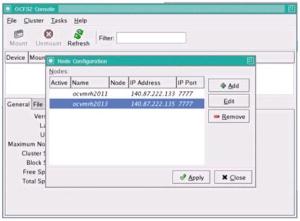
Apply, and Close the window.
Once all of the nodes have been added, click on Cluster –> Propagate Configuration. This will copy the OCFS2 configuration file to each node in the cluster. You may be prompted for root passwords as ocfs2console uses ssh to propagate the configuration file. Answer ‘yes’ if you see following prompt.
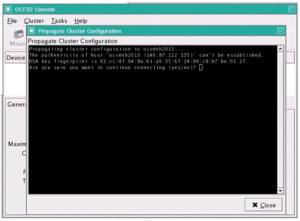
When you see ‘Finished!’, click on Close, and leave the OCFS2 console by clicking on File –> Quit.
After exiting the ocfs2console, you will have a /etc/ocfs2/cluster.conf similar to the following on all nodes. This OCFS2 configuration file should be exactly the same on all of the nodes:
Create /etc/ocfs2 directory if missing.
You now need to configure the on-boot properties of the O2CB driver so that the cluster stack services will start on each boot. You will also be adjusting the OCFS2 Heartbeat Threshold from its default setting of 7 to 601. All the tasks within this section will need to be performed on both nodes in the cluster as root user.
Set the on-boot properties as follows:
Verify that ocfs2 and o2cb are started at boot time. Check this on both nodes. As root user:
As root on each of the cluster nodes, create the mount point directory for the OCFS2 filesystem
The example below creates an OCFS2 filesystem on the unused /dev/sdc1 partition with a volume label of “/u03″ (-L /u03), a block size of 4K (-b 4K) and a cluster size of 32K (-C 32K) with 4 node slots (-N 4). See the OCFS2 Users Guide for more information on mkfs.ocfs2 command line options.
Run the following command as root on node1 only
Since this filesystem will contain the Oracle Clusterware files and Oracle RAC database files, we must ensure that all I/O to these files uses direct I/O (O_DIRECT). Use the “datavolume” option whenever mounting the OCFS2 filesystem to enable direct I/O. Failure to do this can lead to data loss in the event of system failure. Mount the ocfs2 file system on all cluster nodes, run the following command as root user.
To verify that the OCFS2 filesystem is mounted, issue the df command on both nodes:
As root user, run the following commands on node1 only. Since /u03 is on a shared disk, all the files added from one node will be visible on other nodes.
CRS files:
ASM was a new storage option introduced with Oracle Database 10gR1 that provides the services of a filesystem, logical volume manager, and software RAID in a platform-independent manner. ASM can stripe and mirror your disks, allow disks to be added or removed while the database is under load, and automatically balance I/O to remove “hot spots.” It also supports direct and asynchronous I/O and implements the Oracle Data Manager API (simplified I/O system call interface) introduced in Oracle9i.
ASM is not a general-purpose filesystem and can be used only for Oracle data files, redo logs, control files, and flash recovery area. Files in ASM can be created and named automatically by the database (by use of the Oracle Managed Files feature) or manually by the DBA. Because the files stored in ASM are not accessible to the operating system, the only way to perform backup and recovery operations on databases that use ASM files is through Recovery Manager (RMAN).
ASM is implemented as a separate Oracle instance that must be up if other databases are to be able to access it. Memory requirements for ASM are light: only 64 MB for most systems.
Installing ASM
On Linux platforms, ASM can use raw devices or devices managed via the ASMLib interface. Oracle recommends ASMLib over raw devices for ease-of-use and performance reasons. ASMLib 2.0 is available for free download from OTN. This section walks through the process of configuring a simple ASM instance by using ASMLib 2.0 and building a database that uses ASM for disk storage.
Determine Which Version of ASMLib You Need
ASMLib 2.0 is delivered as a set of three Linux packages:
* oracleasmlib-2.0 – the ASM libraries
* oracleasm-support-2.0 – utilities needed to administer ASMLib
* oracleasm – a kernel module for the ASM library
Each Linux distribution has its own set of ASMLib 2.0 packages, and within each distribution, each kernel version has a corresponding oracleasm package. The following paragraphs describe how to determine which set of packages you need.
First, determine which kernel you are using by logging in as root and running the following command:
oracleasm-2.6.9-42.0.3.8.2.ELsmp-2.0.3-1.i686.rpm
oracleasmlib-2.0.2-1.i386.rpm
oracleasm-support-2.0.3-1.i386.rpm
You can download ASMLib packages from OTN:
1. Point your Web browser to http://www.us.oracle.com/technology/tech/linux/asmlib/index.html
2. Select the link for your version of Linux under Downloads.
3. Download the oracleasmlib and oracleasm-support packages for your version of Linux
4. Download the oracleasm package corresponding to your kernel.
After download, install the rpms:
Before using ASMLib, you must run a configuration script to prepare the driver. Run the following command as root, and answer the prompts as shown in the example below. Run this on each node in the cluster.
We will use the partitions /dev/sdd1, and /devsde1 we created in section ‘Partition the Disks’
You mark disks for use by ASMLib by running the following command as root from one of the cluster nodes:
You can download Oracle Database 10g Release 2 from OTN: http://www.us.oracle.com/technology/software/products/database/oracle10g/htdocs/10201linuxsoft.html.
If everything is set up correctly, you can now use ssh to log in as oracle user, execute programs, and copy files on the other cluster nodes without having to enter a password. It is very important to verify user equivalence on all nodes before you start installer. Run a simple command like date on all cluster nodes, do this for all public and private Ips (vip interface will not work until after the cluster installed and VIPCA ran) :
Do this from both nodes
Before installing the Oracle RAC 10g Release 2 database software, you must first install Oracle Clusterware. Oracle Clusterware requires two files to be shared among all of the nodes in the cluster: the Oracle Cluster Registry (100MB) and the Voting Disk (20MB). These files may be stored on raw devices or on a cluster filesystem. (NFS is also supported for certified NAS systems, but that is beyond the scope of this guide.) Oracle ASM may not be used for these files because ASM is dependent upon services provided by Clusterware. This guide will use OCFS2 as a cluster filesystem to store the Oracle Cluster Registry and Voting Disk files.
Use the graphical login to log in as oracle user to node1. You can use vncviewer to connecte to vncserver session we started earlier in this guide (ocvmrh2011: 55)
Set the ORACLE_BASE environment variable:
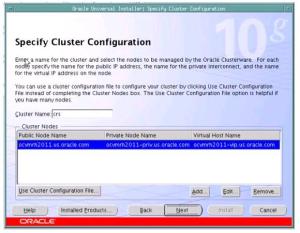
Click on Edit, and change the node names as assigned to you. Do not use us.oracle.com on Private and Virtual host names.
Change the names to look like this:
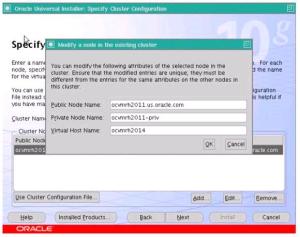
Click on OK, then click on Add and enter node names for other cluster nodes.
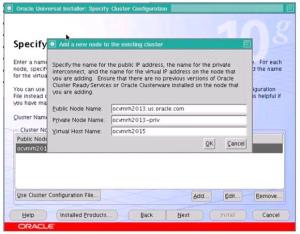
Click on OK
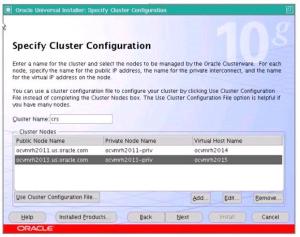
Click on Next.
2. Specify Network Interface Usage – Specify the Interface Type (public, private, or “do no use”) for each interface
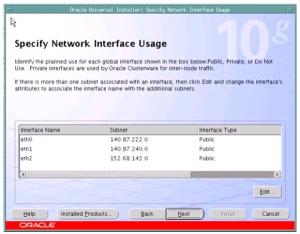
Select eth2, and Click on Edit. Change eth2 to Private as bellow:
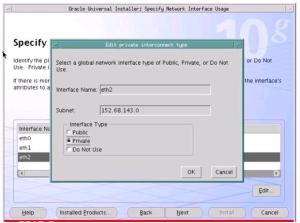
Click OK. The final screen should look like this:
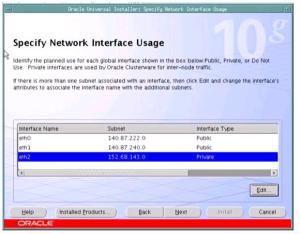
Click Next.
Create the ASM Instance
If you are planning to use OCFS2 for database storage, skip this section and continue with Create the RAC Database. If you plan to use Automatic Storage Management (ASM) for database storage, follow the instructions below to create an ASM instance on each cluster node. Be sure you have installed the ASMLib software as described earlier in this guide before proceeding.
If you have not already done so, login as oracle user on node1 and set the ORACLE_BASE environment variable as in previous steps.
Start the installation using “runInstaller” from the “database” directory:
Create the RAC Database
If you have not already done so, login as oracle user on node1 and set the ORACLE_BASE environment variable as in previous steps.
Start the installation using “runInstaller” from the “database” directory:
***********************************
Useful Commands
Following are some commands for your reference you can run as oracle user.
Add $ORACLE_HOME/bin to your PATH before using these commands.
Note: All srvctl command can be run from one node to perform action on another nodes since it is a cluster wide tool.
To stop everything follow this sequence of commands.
Check status of entire database:
Start enterprise manager
Sign-on to enterprise manager with
Username: sys , and the password you assigned to this account
Connect as: sysdba
Note: For any reason if you have to reboot the rac nodes, you may need to stop nodeapps with ‘srvctl stop nodeapps –n {node name}’ on both nodes, and then run above commands in reverse order with the ‘start’ option to start all rac components.
For more information and documentation for 10g RAC, go to: http://www.oracle.com/technology/products/database/clustering/index.html
References:
Installing Oracle RAC 10g Release 2 on Linux x86 by John Smiley http://www.oracle.com/technology/pub/articles/smiley_rac10g_install.html#background
Build your own oracle RAC cluster on Oracle Enterprise Linux and iSCSI by Jeffrey Hunter http://www.oracle.com/technology/pub/articles/hunter_rac10gr2_iscsi.html
Today I am going to explain a procedure for creating a 2 node 10g RAC Database. This note provides step-by-step instructions to install and configure Oracle 10g R2 RAC Database on Oracle Enterprise Linux (EL4U4). It also includes steps to configure Linux for Oracle. This walkthrough uses a virtual two nodes cluster on VMware using shared SCSI disks between the nodes. The note assumes that the hardware is in place, OS is installed, network is setup (public and private networks) and the shared disks are also in place. This note is developed for someone who wants to do hands-on practice on installation and configuration of 10g RAC components. Please note that the configuration choices made in this guide may not be adequate for the production environment and may not provide best practices.
Our configuration uses the following:
Hardware
Two Virtual Machines each with:
1 CPU
2 GB memory
18 GB local disk with OS
10 GB local disk for Oracle binaries
3 x 10 GB shared disks for RAC
Machine Names
ocvmrh2011.us.oracle.com
ocvmrh2013.us.oracle.com
Software
OS: Oracle Enterprise Linux 4 Update 4
Oracle Clusterware
Oracle Cluster File System version 2 (OCFS2)
Oracle Automatic Storage Management (ASM) instance (Optional)
Oracle 10g RAC R2 software
This guide is divided into three main parts.
Part I: Configure Linux for Oracle
Part II: Prepare the Shared Disks
Part III: Install Oracle Software.
Note: You will be setting up number of passwords (for root, oracle, vnc, sys, system etc) during the installation. Please write these down or keep all of them same to make it easy to remember for you. When asked to run root.sh during installation, run it on node1 and then when finished run on node2. Be extra careful on reading and following all the steps as described in this guide to a successful installation. The procedure described in this note is quite straight forward but for any reason if you run into a problem, it is best to look for help on metalink.
Part I: Configure Linux for Oracle
Oracle Groups and User Account
We need the Linux groups and user account that will be used to install and maintain the Oracle 10g Release 2 software. The user account will be called ‘oracle’ and the groups will be ‘oinstall’ and ‘dba.’ Create the user account and groups using unix commands useradd and groupadd. Also, you need to set the group ‘oinstall’ as a primary group for ‘oracle’ user and group ‘dba’ to be the secondary group.Execute the following commands as root on each cluster node:
# /usr/sbin/usermod  -g oinstall -G dba oracle

# id oracle

uid=1000(oracle) gid=2258(oinstall) groups=2258(oinstall),1001(dba)
The User ID and Group IDs must be the same on all cluster nodes. Verify that when running above command on remaining cluster nodes.
Set the password on the oracle account on all cluster nodes:
# passwd oracle

Changing password for user oracle.

New password:

Retype new password:

passwd: all authentication tokens updated successfully.
Create Mount Points
Now create mount points to store the Oracle 10g Release 2 software.
Issue the following commands as root on each node:
# mkdir -p /u01/app/

# chown -R oracle:oinstall /u01/app/

# chmod -R 750 /u01/app/
Configure Kernel Parameters
Login as root and configure the Linux kernel parameters on each node.
Backup /etc/sysctl.conf file
# cp /etc/sysctl.conf /etc/sysctl.conf.org

# vi /etc/sysctl.conf
Make sure the values are equal or greater for the following kernel parameters:
kernel.shmall = 2097152
kernel.shmmax = 536870912
kernel.shmmni = 4096
kernel.sem = 250 32000 100 128
fs.file-max = 658576
net.ipv4.ip_local_port_range = 1024 65000
net.core.rmem_default = 262144
net.core.rmem_max = 1048536
net.core.wmem_default = 262144
net.core.wmem_max = 1048536
Save the file /etc/sysctl.conf if you need to make any changes, and run following command to load new settings:
# /sbin/sysctl –pSetting Shell Limits for the oracle User
Oracle recommends setting the limits to the number of processes and number of open files each Linux account may use. To make these changes, you may cut and paste the following commands one line at a time as root on each node or edit the file and add the lines between EOFs at the end of each file.
$ cat >> /etc/security/limits.conf << EOF

oracle soft nproc 2047

oracle hard nproc 16384

oracle soft nofile 1024

oracle hard nofile 65536

EOF
$ cat >> /etc/pam.d/login << EOF
session required /lib/security/pam_limits.so
EOF
$ cat >> /etc/profile << EOF
if [ \$USER = "oracle" ]; then
if [ \$SHELL = "/bin/ksh" ]; then
ulimit -p 16384
ulimit -n 65536
else
ulimit -u 16384 -n 65536
fi
umask 022
fi
EOF$ cat >> /etc/csh.login << EOF if ( \$USER == "oracle" ) then limit maxproc 16384 limit descriptors 65536 umask 022 endif EOF
Configure the Hangcheck Timer
Run the following commands as root on each node:modprobe hangcheck-timer hangcheck_tick=30 hangcheck_margin=180Also add the following line to the end of /etc/rc.d/rc.local (but before the “exit 0” line) on both nodes.
modprobe hangcheck-timer hangcheck_tick=30 hangcheck_margin=180
Configure /etc/hosts
You will need three hostnames for each node of the cluster. One public hostname for the primary interface, one private hostname for the cluster interconnect, and one public (vip) hostname for the high availability or failover. You need to copy the private hostname lines for each node, on all other nodes. At the end /etc/hosts file on each node should look like the example files bellow./etc/hosts file used for this walkthru on Node1:
127.0.0.1               localhost.localdomain localhost

140.87.222.133  ocvmrh2011.us.oracle.com ocvmrh2011                      # node1 public

152.68.143.11   ocvmrh2011-priv.us.oracle.com ocvmrh2011-priv            # node1 private

152.68.143.12   ocvmrh2013-priv.us.oracle.com ocvmrh2013-priv            # node2 private

140.87.222.136  ocvmrh2014.us.oracle.com ocvmrh2014                      # node1 vip

140.87.222.137  ocvmrh2015.us.oracle.com ocvmrh2015                      # node2 vip
/etc/hosts file used for this walkthru on Node2:
127.0.0.1               localhost.localdomain localhost

140.87.222.135  ocvmrh2013.us.oracle.com ocvmrh2013                      # node2 public

152.68.143.11   ocvmrh2011-priv.us.oracle.com ocvmrh2011-priv            # node1 private

152.68.143.12   ocvmrh2013-priv.us.oracle.com ocvmrh2013-priv            # node2 private

140.87.222.136  ocvmrh2014.us.oracle.com ocvmrh2014                      # node1 vip

140.87.222.137  ocvmrh2015.us.oracle.com ocvmrh2015                      # node2 vip
Configure SSH for User Equivalence
During the installation of Oracle RAC 10g Release 2, OUI needs to copy files to and execute programs on the other nodes in the cluster. In order to allow OUI to do that, you must configure SSH to allow user equivalence. Establishing user equivalence with SSH provides a secure means of copying files and executing programs on other nodes in the cluster without requiring password prompts.
The first step is to generate public and private keys for SSH. There are two versions of the SSH protocol; version 1 uses RSA and version 2 uses DSA, so we will create both types of keys to ensure that SSH can use either version. The ssh-keygen program will generate public and private keys of either type depending upon the parameters passed to it.
The first step in configuring SSH is to create RSA and DSA key pairs on both Oracle RAC nodes in the cluster. The command to do this will create a public and private key for both RSA and DSA (for a total of four keys per node). The content of the RSA and DSA public keys will then need to be copied into an authorized key file which is then distributed to both Oracle RAC nodes in the cluster.
For the purpose of this note I will refer ocvmrh2011 as node1 and ocvmrh2013 as node2.
Use the following steps to create the RSA and DSA key pairs. Please note that these steps will need to be completed on both Oracle RAC nodes in the cluster.
1. Logon as the “oracle” UNIX user account.
# su – oracle2. If necessary, create the .ssh directory in the “oracle” user’s home directory and set the correct permissions on it:
$ mkdir -p ~/.ssh

$ chmod 700 ~/.ssh
3. Enter the following command to generate an RSA key pair (public and private key) for version 3 of the SSH protocol:
$ /usr/local/git/bin/ssh-keygen -t rsa

Generating public/private rsa key pair.

Enter file in which to save the key (/home/oracle/.ssh/id_rsa):

Enter passphrase (empty for no passphrase):

Enter same passphrase again:

Your identification has been saved in /home/oracle/.ssh/id_rsa.

Your public key has been saved in /home/oracle/.ssh/id_rsa.pub.

The key fingerprint is:

7c:b9:d8:4e:e6:c2:25:65:73:cc:d1:84:b8:b8:f0:c2 oracle@ocvmrh2011
This command will write the public key to the ~/.ssh/id_rsa.pub file and the private key to the ~/.ssh/id_rsa file. Note that you should never distribute the private key to anyone!
4. Enter the following command to generate a DSA key pair (public and private key) for version 3 of the SSH protocol:
$ /usr/local/git/bin/ssh-keygen -t dsa

Generating public/private dsa key pair.

Enter file in which to save the key (/home/oracle/.ssh/id_dsa):

Enter passphrase (empty for no passphrase):

Enter same passphrase again:

Your identification has been saved in /home/oracle/.ssh/id_dsa.

Your public key has been saved in /home/oracle/.ssh/id_dsa.pub.

The key fingerprint is:

93:ae:86:78:c0:12:c0:80:66:56:0a:63:99:39:b0:19 oracle@ocvmrh2011
This command will write the public key to the ~/.ssh/id_dsa.pub file and the private key to the ~/.ssh/id_dsa file. Note that you should never distribute the private key to anyone!
5. Repeat the above steps for both Oracle RAC nodes in the cluster.
Now that both Oracle RAC nodes contain a public and private key for both RSA and DSA, you will need to create an authorized key file on one of the nodes. An authorized key file is nothing more than a single file that contains a copy of everyone’s (every node’s) RSA and DSA public key. Once the authorized key file contains all of the public keys, it is then distributed to all other nodes in the cluster.
Complete the following steps on one of the nodes in the cluster to create and then distribute the authorized key file. For the purpose of this article, I am using node1: ocvmrh2011
1. Create the authorized key file:
$ touch ~/.ssh/authorized_keys

$ cd ~/.ssh

$ ls -l *.pub

-rw-r--r--  1 oracle oinstall 607 Aug  2 14:40 id_dsa.pub

-rw-r--r--  1 oracle oinstall 399 Aug  2 14:35 id_rsa.pub
The listing above should show the id_rsa.pub and id_dsa.pub public keys created in the previous section.
In this step, use SSH to copy the content of the ~/.ssh/id_rsa.pub and ~/.ssh/id_dsa.pub public key from both Oracle RAC nodes in the cluster to the authorized key file just created (~/.ssh/authorized_keys). Again, this will be done from node1. You will be prompted for the “oracle” UNIX user account password for both Oracle RAC nodes accessed. Notice that when using SSH to access the node you are on (node1), the first time prompts for the “oracle” UNIX user account password. For any of the remaining nodes, it will always ask for the “oracle” UNIX user account password.
The following example is being run from node1 and assumes a two-node cluster, node1: ocvmrh2011, and node2: ocvmrh2013
$ ssh ocvmrh2011 cat ~/.ssh/id_rsa.pub >> ~/.ssh/authorized_keys

The authenticity of host 'ocvmrh2011 (140.87.222.133)' can't be established.

RSA key fingerprint is 35:4e:cb:25:95:5d:6e:0b:46:eb:3b:54:50:da:e3:f8.

Are you sure you want to continue connecting (yes/no)? yes

Password: XXXXXX

$ ssh ocvmrh2011 cat ~/.ssh/id_dsa.pub >> ~/.ssh/authorized_keys

$ ssh ocvmrh2013 cat ~/.ssh/id_rsa.pub >> ~/.ssh/authorized_keys

The authenticity of host 'ocvmrh2013 (140.87.222.135)' can't be established.

RSA key fingerprint is 93:cc:4f:94:8a:61:a9:35:6f:24:b9:c8:b7:be:01:2f.

Are you sure you want to continue connecting (yes/no)? yes

Password: XXXXXX

$ ssh ocvmrh2013 cat ~/.ssh/id_dsa.pub >> ~/.ssh/authorized_keys

Password: XXXXXX
2. At this point, we have the content of the RSA and DSA public keys from every node in the cluster in the authorized key file (~/.ssh/authorized_keys) on node1. We now need to copy it to the remaining nodes in the cluster. In our two-node cluster example, the only remaining node is node2. Use the scp command to copy the authorized key file to all remaining nodes in the cluster:
$ scp ~/.ssh/authorized_keys ocvmrh2013:.ssh/authorized_keys

Password: XXXXXX

authorized_keys                                100% 2012     2.0KB/s   00:00
3. Change the permission of the authorized key file for both Oracle RAC nodes in the cluster by logging into the node and running the following:
$ chmod 600 ~/.ssh/authorized_keysEstablish User Equivalence
When running the OUI, it will need to run the secure shell tool commands (ssh and scp) without being prompted for a passphrase. Even though SSH is configured on both Oracle RAC nodes in the cluster, using the secure shell tool commands will still prompt for a passphrase. Before running the OUI, you need to enable user equivalence for the terminal session you plan to run the OUI from. For the purpose of this article, all Oracle installations will be performed from node1.
User equivalence will need to be enabled on any new terminal shell session before attempting to run the OUI. If you log out and log back in to the node you will be performing the Oracle installation from, you must enable user equivalence for the terminal shell session as this is not done by default.
To enable user equivalence for the current terminal shell session, perform the following steps:
1. Logon to the node where you want to run the OUI from (node1) as the “oracle” UNIX user account.
# su – oracle2. Enter the following commands:
$ exec /usr/local/git/bin/ssh-agent $SHELL

$ /usr/local/git/bin/ssh-add

Identity added: /home/oracle/.ssh/id_rsa (/home/oracle/.ssh/id_rsa)

Identity added: /home/oracle/.ssh/id_dsa (/home/oracle/.ssh/id_dsa)
Note: if the user equivalence is ever lost, you will have to run ssh-agent and ssh-add again to re-establish user equivalence.
Test Connectivity
If SSH is configured correctly, you will be able to use the ssh and scp commands without being prompted for anything from this terminal session:
Enter following commands as oracle user on both nodes.
$ ssh ocvmrh2011 "date;hostname"

Fri Aug  3 14:53:33 CDT 2007

ocvmrh2011

$ ssh ocvmrh2013 "date;hostname"

Fri Aug  3 14:53:49 CDT 2007

ocvmrh2013
Note: It is possible that the first time you use SSH to connect to a node from a particular system, you may see a message similar to the following, just enter “yes” if you see this prompt. The second time you try the same command from the same node you will not see any prompts.
$ ssh ocvmrh2011 "date;hostname"

The authenticity of host 'ocvmrh2011 (140.87.222.133)' can't be established.

RSA key fingerprint is 35:4e:cb:25:95:5d:6e:0b:46:eb:3b:54:50:da:e3:f8.

Are you sure you want to continue connecting (yes/no)? yes

Fri Aug  3 14:54:12 CDT 2007

ocvmrh2011
It is crucial that you test connectivity in each direction from all servers. That will ensure that messages like the one above do not occur when the OUI attempts to copy files during CRS and database software installation. This message will only occur the first time an operation on a remote node is performed, so by testing the connectivity, you not only ensure that remote operations work properly, you also complete the initial security key exchange.
Check all ssh combination by running above ssh date command. Do this from both nodes.
1. ssh both public hostname

2. ssh both private hostname

3. ssh both public ip address

4. ssh both Private ip address
Note: For some reason if the User Equivalence didn’t work for you, and if you still see a propmt when you do ssh commands shown above, just do “rm –rf ~/.ssh” as oracle user and start all over again from the “Configure SSH for user Equivalence” section in this document.
Part II: Prepare the Shared Disks
Both Oracle Clusterware and Oracle RAC require access to disks that are shared by each node in the cluster. The shared disks must be configured using one of the following methods. Note that you cannot use a “standard” filesystem such as ext3 for shared disk volumes since such file systems are not cluster aware.For Clusterware:
1. OCFS (Release 1 or 2)
2. raw devices
3. third party cluster filesystem such as GPFS or Veritas
For RAC database storage:
1. OCFS (Release 1 or 2)
2. ASM
3. raw devices
4. third party cluster filesystem such as GPFS or Veritas
This note covers installations using OCFS2 and ASM. If you have a small number of shared disks, you may wish to use OCFS2 for both Oracle Clusterware and the Oracle RAC database files. If you have more than a few shared disks, consider using ASM for Oracle RAC database files for the performance benefits ASM provides. Note that ASM cannot be used to store Oracle Clusterware files since Clusterware must be installed before ASM (ASM depends upon the services of Oracle Clusterware). This guide uses OCFS2 for Oracle Clusterware files, and ASM for RAC database files.
Partition the Disks
In order to use either OCFS2 or ASM, you must have unused disk partitions available. This section describes how to create the partitions that will be used for OCFS2 and for ASM.
WARNING: Improperly partitioning a disk is one of the surest and fastest ways to wipe out everything on your hard disk. If you are unsure how to proceed, stop and get help, or you will risk losing data.
I have three empty SCSI disks setup to use for this cluster install. These disks are configured as shared disks and are visible to all nodes.
They are:
/dev/sdc
/dev/sdd
/dev/sde
Note: you can run “/sbin/sfdisk –s” command as root user to see all the disks.
In this example we will use /dev/sdc for OCFS2, and use /dev/sdd and /dev/sde for ASM.
You will now use /dev/sdc (an empty SCSI disk with no existing partitions) to create a single partition for the entire disk (10 GB) to be used for OCFS2.
As root user on Node1, run the following command:
# fdisk /dev/sdc

Device contains neither a valid DOS partition table, nor Sun, SGI or OSF disklabel

Building a new DOS disklabel. Changes will remain in memory only,

until you decide to write them. After that, of course, the previous

content won't be recoverable.

The number of cylinders for this disk is set to 1305.

There is nothing wrong with that, but this is larger than 1024,

and could in certain setups cause problems with:

1) software that runs at boot time (e.g., old versions of LILO)

2) booting and partitioning software from other OSs

(e.g., DOS FDISK, OS/2 FDISK)

Warning: invalid flag 0x0000 of partition table 4 will be corrected by w(rite)

Command (m for help): n

Command action

e   extended

p   primary partition (1-4)

p

Partition number (1-4): 1

First cylinder (1-1305, default 1):

Using default value 1

Last cylinder or +size or +sizeM or +sizeK (1-1305, default 1305):

Using default value 1305

Command (m for help): w

The partition table has been altered!

Calling ioctl() to re-read partition table.

Syncing disks.
Now verify the new partition:
# fdisk -l /dev/sdc

Disk /dev/sdc: 10.7 GB, 10737418240 bytes

255 heads, 63 sectors/track, 1305 cylinders

Units = cylinders of 16065 * 512 = 8225280 bytes

Device Boot      Start         End      Blocks   Id  System

/dev/sdc1               1           1305    10482381   83  Linux
Repeat the above steps for each disk bellow and create a single partition for each. Disk partitioning should be done as root from one node only.
/dev/sdd
/dev/sde
When finished partitioning, run the ‘partprobe’ command as root on each of the remaining cluster nodes in order to assure that the new partitions are configured.
# partprobeOracle Cluster File System (OCFS) Release 2
OCFS2 is a general-purpose cluster file system that can be used to store Oracle Clusterware files, Oracle RAC database files, Oracle software, or any other types of files normally stored on a standard filesystem such as ext3. This is a significant change from OCFS Release 1, which only supported Oracle Clusterware files and Oracle RAC database files.
OCFS2 is available free of charge from Oracle as a set of three RPMs: a kernel module, support tools, and a console. There are different kernel module RPMs for each supported Linux kernel. Install the RPMS. Once you are done with the installation of rpms, you can run following command on all nodes to verify the installation: you should see three rpms as bellow.
# rpm -qa|grep ocfs

ocfs2console-1.2.2-2

ocfs2-tools-1.2.2-2

ocfs2-2.6.9-42.0.3.8.2.ELsmp-1.2.4-2
(OCFS2 kernel modules may be downloaded from http://oss.us.oracle.com/projects/ocfs2/files/ and the tools and console may be downloaded from http://oss.us.oracle.com/projects/ocfs2-tools/files/.)
Configure OCFS2
Note: Our servers were available at a remote location and hence we had to use VNC. If you are directly logged onto server, you may skip using VNC.
We need a graphical environment to run OCFS2 Console we started vncserver on Node1 as oracle user:
$ vncserver :55

You will require a password to access your desktops.

Password:

Verify:

New 'ocvmrh2011:55 (oracle)' desktop is ocvmrh2011:55

Creating default startup script /home/oracle/.vnc/xstartup

Starting applications specified in /home/oracle/.vnc/xstartup

Log file is /home/oracle/.vnc/ocvmrh2011:55.log
Now using vncviewer from your desktop access the vnc session you just started on Node1 (ocvmrh2011:55). Sign-on using the vnc password you set in above step.
On vnc desktop, left click the mouse and select ‘Xterm’ to open a new window. In new window ‘su –‘ to root:
$ su –

Password:

Run ocfs2console as root:

# ocfs2console

Select Cluster → Configure Nodes
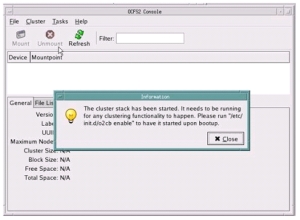
Click on Close if you see following Information message.
Note: This application is slow, and may take a few seconds before you see new window.

Click on Add on the next window, and enter the Name and IP Address of each node in the cluster.
Note: Use node name to be the same as returned by the ‘hostname’ command.
Ex: ocvmrh2011 (short name, without the oracle.com)


Apply, and Close the window.
Once all of the nodes have been added, click on Cluster –> Propagate Configuration. This will copy the OCFS2 configuration file to each node in the cluster. You may be prompted for root passwords as ocfs2console uses ssh to propagate the configuration file. Answer ‘yes’ if you see following prompt.

When you see ‘Finished!’, click on Close, and leave the OCFS2 console by clicking on File –> Quit.
After exiting the ocfs2console, you will have a /etc/ocfs2/cluster.conf similar to the following on all nodes. This OCFS2 configuration file should be exactly the same on all of the nodes:
node:

ip_port = 7777

ip_address = 140.87.222.133

number = 0

name = ocvmrh2011

cluster = ocfs2

node:

ip_port = 7777

ip_address = 140.87.222.135

number = 1

name = ocvmrh2013

cluster = ocfs2

cluster:
node_count = 2

name = ocfs2
If you don’t see this file on any node, follow the steps bellow to copy this file on missing nodes as root user.
Create /etc/ocfs2 directory if missing.
# mkdir /etc/ocfs2Copy the cluster.conf file from the node1 (where it is found) to the other node (where it is missing). You will be prompted for the root password.
# scp /etc/ocfs2/cluster.conf ocvmrh2013:/etc/ocfs2/cluster.conf

Password:

cluster.conf                                  100%  240     0.2KB/s   00:00
Configure O2CB to Start on Boot and Adjust O2CB Heartbeat Threshold
You now need to configure the on-boot properties of the O2CB driver so that the cluster stack services will start on each boot. You will also be adjusting the OCFS2 Heartbeat Threshold from its default setting of 7 to 601. All the tasks within this section will need to be performed on both nodes in the cluster as root user.
Set the on-boot properties as follows:
# /etc/init.d/o2cb offline ocfs2

# /etc/init.d/o2cb unload

# /etc/init.d/o2cb configure

Configuring the O2CB driver.

This will configure the on-boot properties of the O2CB driver.

The following questions will determine whether the driver is loaded on

boot.  The current values will be shown in brackets ('[]').  Hitting

<ENTER> without typing an answer will keep that current value.  Ctrl-C

will abort.

Load O2CB driver on boot (y/n) [y]: y

Cluster to start on boot (Enter "none" to clear) [ocfs2]: ocfs2

Specify heartbeat dead threshold (>=7) [7]: 601

Writing O2CB configuration: OK

Loading module "configfs": OK

Mounting configfs filesystem at /config: OK

Loading module "ocfs2_nodemanager": OK

Loading module "ocfs2_dlm": OK

Loading module "ocfs2_dlmfs": OK

Mounting ocfs2_dlmfs filesystem at /dlm: OK

Starting O2CB cluster ocfs2: OK

We can now check again to make sure the settings took place in for the o2cb cluster stack:

# cat /proc/fs/ocfs2_nodemanager/hb_dead_threshold

601
The default value was 7, but what does this value represent? Well, it is used in the formula below to determine the fence time (in seconds):[fence time in seconds] = (O2CB_HEARTBEAT_THRESHOLD - 1) * 2So, with an O2CB heartbeat threshold of 7, we would have a fence time of:
(7 - 1) * 2 = 12 secondsIn our case, I used a larger threshold (of 1200 seconds), so I adjusted O2CB_HEARTBEAT_THRESHOLD to 601 as shown below:
(601 - 1) * 2 = 1200 secondsIt is important to note that the value of 601 I used for the O2CB heartbeat threshold is the maximum you can use to prevent OCFS2 from panicking the kernel.
Verify that ocfs2 and o2cb are started at boot time. Check this on both nodes. As root user:
# chkconfig --list |egrep "ocfs2|o2cb"

ocfs2           0:off   1:off   2:on    3:on    4:on    5:on    6:off

o2cb            0:off   1:off   2:on    3:on    4:on    5:on    6:off
If it doesn’t look like above on both nodes, turn them on by following command as root:
# chkconfig ocfs2 on

# chkconfig o2cb on
Create and format the OCFS2 filesystem on the unused disk partition
As root on each of the cluster nodes, create the mount point directory for the OCFS2 filesystem
# mkdir /u03Note: It is possible to format and mount the OCFS2 partitions using the ocfs2console GUI; however, this note will use the command line utilities.
The example below creates an OCFS2 filesystem on the unused /dev/sdc1 partition with a volume label of “/u03″ (-L /u03), a block size of 4K (-b 4K) and a cluster size of 32K (-C 32K) with 4 node slots (-N 4). See the OCFS2 Users Guide for more information on mkfs.ocfs2 command line options.
Run the following command as root on node1 only
# mkfs.ocfs2 -b 4K -C 32K -N 4 -L /u03 /dev/sdc1

mkfs.ocfs2 1.2.2

Filesystem label=/u03

Block size=4096 (bits=12)

Cluster size=32768 (bits=15)

Volume size=10733944832 (327574 clusters) (2620592 blocks)

11 cluster groups (tail covers 5014 clusters, rest cover 32256 clusters)

Journal size=67108864

Initial number of node slots: 4

Creating bitmaps: done

Initializing superblock: done

Writing system files: done

Writing superblock: done

Formatting Journals: done

Writing lost+found: done

mkfs.ocfs2 successful
Mount the OCFS2 filesystem
Since this filesystem will contain the Oracle Clusterware files and Oracle RAC database files, we must ensure that all I/O to these files uses direct I/O (O_DIRECT). Use the “datavolume” option whenever mounting the OCFS2 filesystem to enable direct I/O. Failure to do this can lead to data loss in the event of system failure. Mount the ocfs2 file system on all cluster nodes, run the following command as root user.
# mount -t ocfs2 -L /u03 -o datavolume /u03Notice that the mount command uses the filesystem label (-L u03) used during the creation of the filesystem. This is a handy way to refer to the filesystem without having to remember the device name.
To verify that the OCFS2 filesystem is mounted, issue the df command on both nodes:
# df /u03

Filesystem           1K-blocks      Used Available Use% Mounted on

/dev/sdc1             10482368    268736  10213632   3% /u03
To automatically mount the OCFS2 filesystem at system boot, add a line similar to the one below to /etc/fstab on each cluster node:
LABEL=/u03 /u03 ocfs2 _netdev,datavolume 0 0Create the directories for shared files
As root user, run the following commands on node1 only. Since /u03 is on a shared disk, all the files added from one node will be visible on other nodes.
CRS files:
# mkdir /u03/oracrs

# chown oracle:oinstall /u03/oracrs

# chmod 775 /u03/oracrs
Database files:
# mkdir /u03/oradata

# chown oracle:oinstall /u03/oradata

# chmod 775 /u03/oradata
Automatic Storage Management (ASM)
ASM was a new storage option introduced with Oracle Database 10gR1 that provides the services of a filesystem, logical volume manager, and software RAID in a platform-independent manner. ASM can stripe and mirror your disks, allow disks to be added or removed while the database is under load, and automatically balance I/O to remove “hot spots.” It also supports direct and asynchronous I/O and implements the Oracle Data Manager API (simplified I/O system call interface) introduced in Oracle9i.
ASM is not a general-purpose filesystem and can be used only for Oracle data files, redo logs, control files, and flash recovery area. Files in ASM can be created and named automatically by the database (by use of the Oracle Managed Files feature) or manually by the DBA. Because the files stored in ASM are not accessible to the operating system, the only way to perform backup and recovery operations on databases that use ASM files is through Recovery Manager (RMAN).
ASM is implemented as a separate Oracle instance that must be up if other databases are to be able to access it. Memory requirements for ASM are light: only 64 MB for most systems.
Installing ASM
On Linux platforms, ASM can use raw devices or devices managed via the ASMLib interface. Oracle recommends ASMLib over raw devices for ease-of-use and performance reasons. ASMLib 2.0 is available for free download from OTN. This section walks through the process of configuring a simple ASM instance by using ASMLib 2.0 and building a database that uses ASM for disk storage.
Determine Which Version of ASMLib You Need
ASMLib 2.0 is delivered as a set of three Linux packages:
* oracleasmlib-2.0 – the ASM libraries
* oracleasm-support-2.0 – utilities needed to administer ASMLib
* oracleasm – a kernel module for the ASM library
Each Linux distribution has its own set of ASMLib 2.0 packages, and within each distribution, each kernel version has a corresponding oracleasm package. The following paragraphs describe how to determine which set of packages you need.
First, determine which kernel you are using by logging in as root and running the following command:
# uname -rm

2.6.9-42.0.3.8.2.ELsmp i686
The rpms are:
oracleasm-2.6.9-42.0.3.8.2.ELsmp-2.0.3-1.i686.rpm
oracleasmlib-2.0.2-1.i386.rpm
oracleasm-support-2.0.3-1.i386.rpm
You can download ASMLib packages from OTN:
1. Point your Web browser to http://www.us.oracle.com/technology/tech/linux/asmlib/index.html
2. Select the link for your version of Linux under Downloads.
3. Download the oracleasmlib and oracleasm-support packages for your version of Linux
4. Download the oracleasm package corresponding to your kernel.
After download, install the rpms:
# cd /u01/stage/asm

# rpm -ivh oracleasm-2.6.9-42.0.3.8.2.ELsmp-2.0.3-1.i686.rpm \

> oracleasmlib-2.0.2-1.i386.rpm \

> oracleasm-support-2.0.3-1.i386.rpm

Preparing...                ########################################### [100%]

1:oracleasm-support      ########################################### [ 33%]

2:oracleasm-2.6.9-42.0.3.########################################### [ 67%]

3:oracleasmlib           ########################################### [100%]
Configuring ASMLib
Before using ASMLib, you must run a configuration script to prepare the driver. Run the following command as root, and answer the prompts as shown in the example below. Run this on each node in the cluster.
# /etc/init.d/oracleasm configure

Configuring the Oracle ASM library driver.

This will configure the on-boot properties of the Oracle ASM library

driver.  The following questions will determine whether the driver is

loaded on boot and what permissions it will have.  The current values

will be shown in brackets ('[ ]').  Hitting <ENTER> without typing an

answer will keep that current value.  Ctrl-C will abort.

Default user to own the driver interface [ ]: oracle

Default group to own the driver interface [ ]: dba

Start Oracle ASM library driver on boot (y/n) [n]: y

Fix permissions of Oracle ASM disks on boot (y/n) [y]: y

Writing Oracle ASM library driver configuration:    [  OK  ]

Creating /dev/oracleasm mount point:                [  OK  ]

Loading module "oracleasm":                         [  OK  ]

Mounting ASMlib driver filesystem:                  [  OK  ]

Scanning system for ASM disks:                      [  OK  ]
Next you tell the ASM driver which disks you want it to use. Oracle recommends that each disk contain a single partition for the entire disk.We will use the partitions /dev/sdd1, and /devsde1 we created in section ‘Partition the Disks’
You mark disks for use by ASMLib by running the following command as root from one of the cluster nodes:
/etc/init.d/oracleasm createdisk [DISK_NAME] [device_name]Tip: Enter the DISK_NAME in UPPERCASE letters, and give each disk a unique name i.e. VOL1, VOL2
# /etc/init.d/oracleasm createdisk VOL1 /dev/sdd1

Marking disk "/dev/sdd1" as an ASM disk:                   [  OK  ]

# /etc/init.d/oracleasm createdisk VOL2 /dev/sde1

Marking disk "/dev/sde1" as an ASM disk:                   [  OK  ]
On all other cluster nodes, run the following command as root to scan for configured ASMLib disks:
# /etc/init.d/oracleasm scandisks

Scanning system for ASM disks:                             [  OK  ]
Verify that ASMLib has marked the disks on each node:
# /etc/init.d/oracleasm listdisks

VOL1

VOL2
Part III: Install Oracle Software
You can download Oracle Database 10g Release 2 from OTN: http://www.us.oracle.com/technology/software/products/database/oracle10g/htdocs/10201linuxsoft.html.
If everything is set up correctly, you can now use ssh to log in as oracle user, execute programs, and copy files on the other cluster nodes without having to enter a password. It is very important to verify user equivalence on all nodes before you start installer. Run a simple command like date on all cluster nodes, do this for all public and private Ips (vip interface will not work until after the cluster installed and VIPCA ran) :
$ ssh ocvmrh2011 date

Tue Aug 14 12:26:31 CDT 2007
Check all ssh combination
Do this from both nodes
1. ssh both public hostname

2. ssh both Private hostname
Install Oracle Clusterware
Before installing the Oracle RAC 10g Release 2 database software, you must first install Oracle Clusterware. Oracle Clusterware requires two files to be shared among all of the nodes in the cluster: the Oracle Cluster Registry (100MB) and the Voting Disk (20MB). These files may be stored on raw devices or on a cluster filesystem. (NFS is also supported for certified NAS systems, but that is beyond the scope of this guide.) Oracle ASM may not be used for these files because ASM is dependent upon services provided by Clusterware. This guide will use OCFS2 as a cluster filesystem to store the Oracle Cluster Registry and Voting Disk files.
Use the graphical login to log in as oracle user to node1. You can use vncviewer to connecte to vncserver session we started earlier in this guide (ocvmrh2011: 55)
Set the ORACLE_BASE environment variable:
$ ORACLE_BASE=/u01/app; export ORACLE_BASEStart the installation using “runInstaller” from the “clusterware” directory:
$ cd /stage/linux/oracle/10G-R2/clusterware

$ ./runInstaller

1.      Welcome

o      Click on Next

2.      Specify Inventory Directory and Credentials

o      The defaults should be correct  ( Ex: /u01/app/oraInventory )

o      Group name: oinstall

o      Click on Next

3.      Specify Home Details

o      Name: OraCrs10g_home

o      Path: /u01/app/oracle/product/10.2.0/crs

o       Click on Next

4.      Product-Specific Prerequisite Checks

o      Correct any problems found before proceeding.

o      Click on Next

1.      Specify Cluster Configuration

o      Enter the cluster name (or accept the default of "crs");
>

Click on Edit, and change the node names as assigned to you. Do not use us.oracle.com on Private and Virtual host names.
Change the names to look like this:

Click on OK, then click on Add and enter node names for other cluster nodes.

Click on OK

Click on Next.
2. Specify Network Interface Usage – Specify the Interface Type (public, private, or “do no use”) for each interface

Select eth2, and Click on Edit. Change eth2 to Private as bellow:

Click OK. The final screen should look like this:

Click Next.
3.      Specify Oracle Cluster Registry (OCR) Location

o      Choose External Redundancy and enter the full pathname of the OCR file (ex: /u03/oracrs/ocr.crs).

o      Click on Next

4.      Specify Voting Disk Location

o      Choose External Redundancy and enter the full pathname of the voting disk file (ex: /u03/oracrs/vote.crs)

o      Click on Next

5.      Summary

o      Click on Install

6.      Execute Configuration Scripts

o      Execute the scripts as root on each node, one at a time, starting with the installation node.

o      Do not run the scripts simultaneously. Wait for one to finish before starting another.

o      Click on OK to dismiss the window when done.

o      Configuration Assistant will run automatically

o      Click Exit on End of Installation screen to exit the installer.

End of Clusterware Installation
Verify that the installation succeeded by running olsnodes from the $ORACLE_BASE/oracle/product/10.2.0/crs/bin directory; for example:
$ /u01/app/oracle/product/10.2.0/crs/bin/olsnodes
ocvmrh2011
ocvmrh2013Once Oracle Clusterware is installed and operating, it’s time to install the rest of the Oracle RAC software.
Create the ASM Instance
If you are planning to use OCFS2 for database storage, skip this section and continue with Create the RAC Database. If you plan to use Automatic Storage Management (ASM) for database storage, follow the instructions below to create an ASM instance on each cluster node. Be sure you have installed the ASMLib software as described earlier in this guide before proceeding.
If you have not already done so, login as oracle user on node1 and set the ORACLE_BASE environment variable as in previous steps.
Start the installation using “runInstaller” from the “database” directory:
$ cd /stage/linux/oracle/10G-R2/database

$ ./runInstaller

1.      Welcome

o      Click on Next

2.      Select Installation Type

o      Select Enterprise Edition

o      Click on Next

3.      Specify Home Details

o      Name:   Ora10gASM

o      Path:      /u01/app/oracle/product/10.2.0/asm

Note: Oracle recommends using a different ORACLE_HOME for ASM than the ORACLE_HOME used for the database for ease of administration.

o      Click on Next

4.      Specify Hardware Cluster Installation Mode

o      Select Cluster Installation

o      Click on Select All

o      Click on Next

5.      Product-specific Prerequisite Checks

o      If you've been following the steps in this guide, all the checks should pass without difficulty. If one or more checks fail, correct the problem before proceeding.

o      Click on Next

6.      Select Configuration Option

o      Select Configure Automatic Storage Management (ASM)

o      Enter the ASM SYS password and confirm

o      Click on Next

7.      Configure Automatic Storage Management

o      Disk Group Name:  DATA

o      Redundancy

- High mirrors data twice.

- Normal mirrors data once.  Select this default.

- External does not mirror data within ASM. This is typically used if an external RAID array is providing redundancy.

o      Add Disks

The disks you configured for use with ASMLib are listed as Candidate Disks (VOL1, VOL2).  Select both disks to include in the disk group.

o      Click on Next

8.      Summary

o      A summary of the products being installed is presented.

o      Click on Install.

9.      Execute Configuration Scripts

o      At the end of the installation, a pop up window will appear indicating scripts that need to be run as root.  Login as root and run the indicated scripts on all nodes as directed.

o      Click on OK when finished.

10.    End of Installation

o      Make note of the URLs presented in the summary, and click on Exit when ready.
11. Congratulations! Your new Oracle ASM Instance is up and ready for use.
Create the RAC Database
If you have not already done so, login as oracle user on node1 and set the ORACLE_BASE environment variable as in previous steps.
Start the installation using “runInstaller” from the “database” directory:
$ cd /nfs/stage/linux/oracle/10G-R2/database

$ ./runInstaller

1.      Welcome

o      Click on Next

2.      Select Installation Type

o      Select Enterprise Edition

o      Click on Next

3.      Specify Home Details

o      Name:   OraDb10g_home1

o      Path:      /u01/app/oracle/product/10.2.0/db

Note: Oracle recommends using a different ORACLE_HOME for the database than the ORACLE_HOME used for ASM.

o      Click on Next

4.      Specify Hardware Cluster Installation Mode

o      Select Cluster Installation

o      Click on Select All

o      Click on Next

5.      Product-specific Prerequisite Checks

o      If you've been following the steps in this guide, all the checks should pass without difficulty. If one or more checks fail, correct the problem before proceeding.

o      Click on Next

6.      Select Configuration Option

o      Select Create a Database

o      Click on Next

7.      Select Databse Configuration

o      Select General Purpose

o      Click on Next

8.      Specify Database Configuration Options

o      Database Naming:  Enter the Global Database Name: and SID: racdb

o      Database Character Set:  Accept the default

o      Database Examples:  Select Create database with sample schemas

o      Click on Next

9.      Select Database Management Option

o      Select Use Database Control for Database Management

o      Click on Next

10.    Specify Database Storage Option

o      If you are using OCFS2 for database storage

§       Select File System

§       Specify Database file location: Enter the path name to the OCFS2 filesystem directory you wish to use.

ex: /u03/oradata/racdb

o      If you are using ASM for database storage ( for this exercise we are going to select ASM)

§       Select Automatic Storage Management (ASM)

o      Click on Next

11.    Specify Backup and Recovery Options

o      Select Do not enable Automated backups

o      Click on Next

12.    For ASM Installations Only:

o      Select ASM Disk Group

§       Select the DATA disk group created in the previous section

§       Click on Next

13.    Specify Database Schema Passwords

o      Select Use the same password for all the accounts

o      Enter the password and confirm

o      Click on Next

14.    Summary

o      A summary of the products being installed is presented.

o      Click on Install.

15.    Configuration Assistants

o      The Oracle Net, Oracle Database, and iSQL*Plus configuration assistants will run automatically (you may have to click on vnc desktop to see the new window, and to start the Assistant.)

16.    Execute Configuration Scripts

o      At the end of the installation, a pop up window will appear indicating scripts that need to be run as root.  Login as root and run the indicated scripts.

o      Click on OK when finished.

17.    End of Installation

o      Make note of the URLs presented in the summary, and click on Exit when ready.
18. Congratulations! Your new Oracle Database is up and ready for use.
***********************************
Useful Commands
Following are some commands for your reference you can run as oracle user.
Add $ORACLE_HOME/bin to your PATH before using these commands.
Note: All srvctl command can be run from one node to perform action on another nodes since it is a cluster wide tool.
To stop everything follow this sequence of commands.
Check status of entire database:
srvctl status database –d {db name} (ex: racdb)Stop database instance:srvctl stop instance –d {db name} –i {instance name} (ex: racdb1)Stop entire database on all nodessrvctl stop database –d {db name}Stop the ASM instance on one nodesrvctl stop asm –n {node name}Stop the nodeapps/clusterware on one nodesrvctl stop nodeapps –n {node name}To start everything follow the above sequence of commands in reverse order with the start option.Start enterprise manager
export ORACLE_SID={sid name} (ex: racdb1)

emctl start dbconsole
Start isqlplusisqlplusctl startTo access and manage the RAC database from enterprise manager, point your browser to a link similar to: ocvmrh2011.us.oracle.com:1158/em for your installation.
Sign-on to enterprise manager with
Username: sys , and the password you assigned to this account
Connect as: sysdba
Note: For any reason if you have to reboot the rac nodes, you may need to stop nodeapps with ‘srvctl stop nodeapps –n {node name}’ on both nodes, and then run above commands in reverse order with the ‘start’ option to start all rac components.
For more information and documentation for 10g RAC, go to: http://www.oracle.com/technology/products/database/clustering/index.html
References:
Installing Oracle RAC 10g Release 2 on Linux x86 by John Smiley http://www.oracle.com/technology/pub/articles/smiley_rac10g_install.html#background
Build your own oracle RAC cluster on Oracle Enterprise Linux and iSCSI by Jeffrey Hunter http://www.oracle.com/technology/pub/articles/hunter_rac10gr2_iscsi.html
Subscribe to:
Posts (Atom)